Key Takeaway: If OnStream fails on several devices and networks, the fault is probably upstream rather than inside your Firestick. Try the short diagnostic sequence below once, then avoid risky APK mirrors. For a dependable replacement, Stremio, Kodi, and FilmRise cover flexible media organization, personal libraries, and legal free movies.
OnStream not working can mean several very different things: the app may show “Couldn’t Load,” stay on a blank home screen, crash at launch, buffer forever, or open normally but fail when you select a title. Applying random fixes without identifying the failure usually wastes time and can erase your watchlist without solving the real problem.
The strongest current evidence points to a wider OnStream availability problem. Users reported similar connection failures on phones, tablets, Android TV boxes, and Fire TV devices from late June through July 2026. That cross-device pattern is more consistent with a backend, domain, or content-source failure than one damaged Firestick cache.
I built this guide around that distinction. You will first learn how to prove whether the fault is local or service-wide, then work through safe Firestick fixes in the right order. If OnStream remains unavailable, eight established alternatives provide clearer ownership, safer installation paths, and more predictable support.
Is OnStream Down, or Is the Problem on Your Firestick?
Start by determining scope. A local fault affects one installation, while a service outage follows you across devices and networks. As of August 24, 2026, recent cross-device reports still describe OnStream as unavailable or unreliable, but no primary operator announcement proves it has permanently closed. Use these checks before changing anything.
- Test Another App: Play a video in YouTube or another known service. Successful playback confirms that your Firestick, HDMI connection, and basic internet access still work.
- Try Another Device: Open the same OnStream installation on an Android phone or TV. Matching errors strongly suggest an account-independent or server-side failure.
- Change the Network: Briefly test through a mobile hotspot. If the error remains, your router, DNS resolver, and home ISP are less likely causes.
- Open Several Titles: One failed movie can mean a dead source, while an empty home screen or universal playback failure points to a wider backend problem.
- Record the Message: Photograph the exact wording and note the time, app version, Fire OS version, and device model before clearing any data.
Match the OnStream Symptom to the Most Likely Cause
The error itself is more useful than a generic “not working” label. A connection failure before posters load is different from a black screen after playback begins. Use this matrix to choose the first test, then follow the detailed fix sequence rather than clearing every setting at once.
| What You See | Most Likely Cause | Best First Test |
|---|---|---|
| “Couldn’t Load” on every screen | OnStream backend, domain, or catalog service unavailable | Try a second device and mobile hotspot |
| App crashes immediately | Corrupted cache, incompatible build, or low storage | Force stop, clear cache, and restart |
| Posters load but no title plays | Content sources or playback endpoints failing | Try several unrelated titles |
| Black screen with audio | Decoder, resolution, or hardware-acceleration conflict | Lower Fire TV display resolution temporarily |
| Install or parse error | Incomplete APK or incompatible Android architecture | Delete the installer and avoid that source |
| Fire TV blocked or disabled notice | Amazon device protection has identified the app | Do not bypass the warning |
- Catalog Failure: Missing posters, search results, and categories together usually indicate that the app cannot reach the service that supplies its interface data.
- Playback Failure: A working catalog with dead videos suggests broken source links, removed hosts, or a player response the device cannot decode correctly.
- Device Failure: Crashing limited to one Firestick is commonly tied to storage pressure, stale app data, damaged installation files, or outdated Fire OS components.
- Routing Failure: Success on a hotspot but failure on home Wi-Fi can indicate ISP routing, DNS filtering, router security, or a problematic VPN endpoint.
- Protection Event: An explicit Fire TV warning is not a buffering problem. Amazon states that identified unlicensed-content apps may be disabled by device protections.
How to Fix OnStream Not Working Without Wiping Everything
Work from reversible fixes to destructive ones. Stop when the symptom changes, because that tells you which layer failed. If OnStream produces the same connection error on multiple devices, complete only the first few checks; clearing data repeatedly cannot restore an unavailable remote service.
- Force Stop First: Open Settings → Applications → Manage Installed Applications → OnStream, select Force Stop, then launch the app again from Your Apps.
- Clear Cache Only: Return to the same menu and select Clear Cache. Do not choose Clear Data yet because that removes local settings and history.
- Restart Fire TV: Use Settings → My Fire TV → Restart, or unplug power for thirty seconds. This clears stalled processes more completely.
- Restart the Router: Power-cycle your router, reconnect the Firestick, and confirm another streaming app plays. This refreshes local routing without changing permanent network settings.
- Test VPN Routing: If connected, try another server and then disconnect briefly. If disconnected, do not assume a VPN will repair a service-wide outage.
| Fix | What It Changes | What It Cannot Fix |
|---|---|---|
| Force stop | Ends a frozen app process | Dead servers or removed sources |
| Clear cache | Removes temporary local files | A blocked domain or backend outage |
| Restart Fire TV | Refreshes memory and system services | An incompatible or disabled APK |
| Change network | Tests ISP, router, and DNS routing | A failure reproduced on every network |
| Clear data | Resets OnStream to a fresh local state | A universal “Couldn’t Load” incident |
| Reinstall | Replaces damaged local application files | Unavailable catalogs, hosts, or operator infrastructure |
What to Do When OnStream Crashes, Freezes, or Shows a Black Screen
A crash or black screen limited to one device deserves additional local troubleshooting. Firesticks have modest storage and memory, and older models can struggle with newer playback components. These steps are useful only when the catalog loads or OnStream behaves differently on another device.
- Free Storage: Remove unused apps and old Downloader files, then keep meaningful space available. Low storage can prevent updates, cache writes, and stable playback.
- Close Background Apps: Restarting is the simplest way to reclaim memory. Avoid opening several media players before retesting OnStream on older Fire TV models.
- Update Fire OS: Open Settings → My Fire TV → About → Check for Updates. Install available system updates and restart before testing again.
- Lower Resolution: Temporarily select 1080p under Display settings. If video appears, the previous resolution, frame rate, or decoder path may be incompatible.
- Clear App Data: Use this only after cache clearing fails. You may lose local preferences, history, and watchlist data stored solely on the device.
Why Reinstalling a Random OnStream APK Can Make Things Worse
Many unrelated sites now claim to be the official OnStream download source, and their version numbers conflict. A same-name Google Play listing describes a managed Android TV content player rather than the familiar free movie APK. Treat an unknown replacement package as a new application, not a trustworthy update.
- Conflicting Versions: Mirrors currently advertise different “latest” releases. A higher number does not prove authenticity, compatibility, ownership, or a working connection to original infrastructure.
- Signature Mismatch: Android refuses an in-place update when the new package uses a different signing certificate. Uninstalling first can hide that important warning signal.
- Clone Risk: A familiar name, logo, and interface can be copied. Review the package name, requested permissions, developer identity, and installer source independently.
- Protection Warnings: Never bypass a Fire TV block or security notice simply to restore streaming. The warning may concern content rights, integrity, or device safety.
- Safer Exit: If you cannot verify the package origin, uninstall OnStream, delete the downloaded APK, and choose an established service from a recognized store.
Is OnStream Permanently Shut Down?
There is not enough primary evidence to state that OnStream has permanently shut down. The defensible conclusion is narrower: the entertainment APK has been widely reported as unavailable or unreliable across devices, and no verified operator notice provides a restoration date. Treat confident takedown claims as unconfirmed unless supported by a named enforcement notice.
- Observed Pattern: Reports from different device families and networks describe the same loading failure, which weakens the theory that individual Firestick settings caused the incident.
- Missing Confirmation: Community posts repeat shutdown and enforcement theories, but repetition is not an official announcement, court filing, or attributable operator statement.
- Unknown Timeline: No reliable restoration estimate is available. “Working soon” messages from unverified channels should not determine what software you install on your television.
- Practical Decision: If the service still fails after the scope test, stop troubleshooting locally and use an alternative while monitoring only sources you already trust.
- Future Return: If OnStream reappears, verify ownership, package signature, permissions, and independent reputation before treating the new download as a continuation of the old app.
How We Chose Safer OnStream Alternatives
The alternatives below are not clones. They solve different parts of the OnStream use case through transparent software projects, licensed ad-supported catalogs, public-library access, or established rental stores. Selection emphasized a clear official destination, Fire TV or Android TV support, active availability, and honest pricing.
- Source Clarity: Each recommendation has an identifiable operator or open-source project and a stable official domain, reducing exposure to impersonated APK pages and misleading mirrors.
- Device Fit: Services were checked for Fire TV, Android TV, or sideload-compatible Android releases, with regional or library restrictions stated instead of ignored.
- Content Rights: Licensed catalogs and personal-media tools rank ahead of unknown scrapers. Kodi and Stremio supply software, while the user chooses lawful content sources.
- Pricing Transparency: Free, ad-supported, library-funded, optional-supporter, rental, and purchase models are labeled separately so “free” never disguises a required subscription or card.
- Usability Value: I prioritized remote-friendly navigation, search, subtitles, watchlists, and reliable update paths over superficial similarity to OnStream’s old interface.
Best OnStream Alternatives to Use While It Is Unavailable
1) Stremio
Stremio is the strongest replacement for people who want one searchable interface across several devices. I like that its official apps separate the media-center software from content sources, making the setup more transparent than a mystery APK. It works on Android TV and many smart-TV platforms, syncs a personal library, and clearly labels its optional supporter features.
Features:
- Unified Discovery: Search movies and shows from one interface, view availability information, and organize titles without bouncing among multiple disconnected home screens.
- Add-on System: Official and community add-ons extend catalogs and services, although you remain responsible for choosing reputable, lawful sources and understanding their separate reliability.
- Device Sync: Your account carries library selections, watch progress, and add-on choices across supported desktop, mobile, web, Android TV, Samsung, and LG apps.
- TV Interface: The Android TV build uses a remote-friendly layout with large artwork, clear rows, subtitle controls, and straightforward playback choices from the sofa.
- Transparent Pricing: Existing core features remain free, while the optional Supporter plan unlocks experimental profiles, filtering, download management, and other convenience tools.
- Active Development: Official download pages list current releases by platform, so you can verify architecture and version without trusting a third-party APK mirror.
- My Best Use: I recommend Stremio when household members want synchronized discovery and a flexible front end rather than a fixed ad-supported catalog.
| Pros | Cons |
| Modern interface and strong cross-device sync | Content availability depends on selected add-ons |
| Official Android TV downloads are clearly listed | Fire TV installation may require sideloading |
| Core app remains free to use | |
| Flexible subtitles, catalogs, and discovery tools |
Pricing: Core app free; optional Supporter plan $39.99 yearly or $199.99 lifetime, checked August 24, 2026.
Link: https://www.stremio.com/
2) Kodi
Kodi is a free, open-source media center for people who value control over their own files, network shares, tuners, and legal add-ons. I consider it more powerful than OnStream but less instant, because Kodi ships without movies or channels. The current stable Android release is Kodi 21.3 Omega, while Kodi 22 remains a prerelease rather than the default choice.
Features:
- Personal Library: Import movies, television episodes, music, photos, and artwork from local drives or network storage into one detailed television interface.
- Official Repository: Install maintained add-ons for services and utilities through Kodi’s repository, while avoiding unverified builds that bundle unknown extensions or modified settings.
- Format Support: Kodi handles a wide range of video, audio, subtitle, playlist, and container formats, making it useful for mixed personal-media collections.
- Remote Design: Its ten-foot interface is built for televisions, with large controls, customizable skins, library views, and support for common remote commands.
- PVR Options: Compatible tuner backends can add lawful live television, recording, guides, and channel management when you already have the required hardware or service.
- My Best Use: I would choose Kodi for a carefully organized personal library or home server, not as an automatic source of free premium movies.
- Open Development: Kodi Foundation publishes stable and development builds openly, documents supported architectures, and clearly rejects preloaded piracy boxes and bootleg content.
| Pros | Cons |
| Free, open-source, and extensively customizable | Requires setup and supplies no content itself |
| Excellent personal-media and network support | Unofficial add-ons can be unreliable or unsafe |
| Remote-friendly interface and broad format support | |
| Official Android packages and documentation |
Pricing: Free and open-source under the GPL; no subscription fee.
Link: https://kodi.tv/
3) FilmRise
FilmRise is a better fit when you want a simple, legal, free app instead of managing add-ons. I found its strongest value in recognizable television, crime, documentary, classic, and genre collections rather than brand-new theatrical releases. The service is ad-supported, requires no subscription, and lists Amazon Fire TV among its supported platforms.
Features:
- Licensed Catalog: FilmRise distributes legal movies and television programs, avoiding the uncertain hosting, disappearing domains, and questionable rights position associated with scraper APKs.
- No Subscription: The service charges no monthly fee and supports viewing with advertising, making costs predictable even when the available catalog rotates.
- Fire TV Support: An official Fire TV app provides a safer installation route, regular store updates, and remote navigation without enabling unknown-source permissions.
- Genre Depth: Crime, documentaries, westerns, horror, drama, comedy, and classic television receive dedicated collections that make older titles easier to discover.
- Watchlist Tools: Saved titles and recently played history reduce repeated searches, while editorial playlists offer a practical starting point for casual browsing.
- My Best Use: I recommend FilmRise for viewers who value a legitimate, uncomplicated catalog and can accept advertisements plus fewer recent blockbuster releases.
- Broad Availability: FilmRise supports Roku, Amazon Fire TV, Android TV, mobile platforms, and smart televisions, though exact titles can vary by country.
| Pros | Cons |
| Legal catalog with no subscription charge | Advertising interrupts some programs |
| Official Amazon Fire TV availability | Few current theatrical releases |
| Strong crime, documentary, and classic selections | |
| No payment card required for basic viewing |
Pricing: Free and ad-supported; zero subscription fees.
Link: https://filmrise.com/
4) Fawesome
Fawesome combines an easy free-movie experience with a clearer legal and business model than OnStream. I would use it for casual browsing when creating an account feels unnecessary. The official service says no registration or subscription is required, supports Fire TV among more than fifteen platforms, and funds viewing through advertising rather than mystery download pages.
Features:
- Instant Viewing: Start eligible movies and shows without registering, providing a low-friction backup when you want entertainment without creating another streaming account.
- Legal Access: Advertising supports licensed viewing, so the platform can explain its content partners and availability instead of hiding behind frequently changing APK domains.
- Fire TV App: Fawesome lists Fire TV among its supported platforms, allowing store-based installation and familiar remote navigation on compatible Amazon devices.
- Genre Variety: Action, drama, comedy, horror, documentaries, family titles, and television collections give casual viewers more range than a single themed FAST channel.
- No Paywall: There is no required subscription tier, trial countdown, or credit-card gate before accessing the complete core ad-supported collection.
- My Best Use: I pick Fawesome for quick, account-free movie nights where occasional advertisements matter less than straightforward access and an official app.
- Platform Reach: Apps cover Roku, Fire TV, Samsung, LG, iOS, Android, and web, making it practical across households with mixed streaming hardware.
| Pros | Cons |
| No registration or subscription required | Commercial breaks are part of free viewing |
| Available on Fire TV and many smart platforms | Catalog depth and availability vary by region |
| Licensed, ad-supported operating model | |
| Simple interface for casual movie discovery |
Pricing: Free and ad-supported; no registration or subscription required.
Link: https://fawesome.tv/
5) Sling Freestream
Sling Freestream suits viewers who want both live channels and on-demand movies without immediately buying a television package. I appreciate that Sling states exactly what the free tier is: an ad-supported service with more than 600 live channels and thousands of on-demand choices. The Fire TV app installs from Amazon’s store, and basic viewing needs no account.
Features:
- Live Channels: More than 600 free channels span news, entertainment, movies, reality, sports, international programming, children’s content, and other FAST categories.
- On-Demand Library: A large rotating collection of shows and films supplements live channels, giving you scheduled viewing and searchable playback within one app.
- No Account Start: Basic Freestream viewing works without an account or payment card, while optional registration enables profiles, favorites, watchlists, and parental controls.
- Fire TV Store: Search for Sling TV in the Amazon interface, install the official app, and choose Stream Free instead of sideloading unknown packages.
- Free DVR: Registered free users can access limited DVR capacity for supported channels, providing more flexibility than a purely linear FAST channel guide.
- My Best Use: I recommend Freestream when live channel surfing matters as much as movies and you are located in a supported service region.
- Upgrade Path: Optional Sling subscriptions and rentals exist separately, so free viewers can ignore paid packages until a specific channel or title justifies them.
| Pros | Cons |
| Large live and on-demand free selection | Primarily designed for the United States |
| No account or card needed to start | Ads and rotating availability are unavoidable |
| Official Fire TV app and clear support | |
| Optional profiles, parental controls, and DVR |
Pricing: Freestream is free and ad-supported; paid Sling packages and rentals are optional.
Link: https://www.sling.com/freestream
6) Kanopy
Kanopy replaces OnStream’s questionable “free premium” promise with a legitimate library-funded model. I recommend checking it when you have a participating public-library card or university login. The service focuses on acclaimed films, documentaries, world cinema, classics, and educational titles, offers an ad-free experience, and officially supports Fire TV devices running Fire OS 6 or newer.
Features:
- Library Access: Sign in through a participating public library or university, turning an existing membership into legitimate home streaming without a personal subscription bill.
- Ad-Free Viewing: Kanopy’s patron experience avoids commercial interruptions, making documentaries, independent films, and longer educational programs easier to watch without breaks.
- Curated Catalog: The collection emphasizes classic cinema, independent releases, foreign films, documentaries, and thoughtful educational programming rather than chasing every current blockbuster.
- Fire TV Support: The official Kanopy television app supports Fire TV with Fire OS 6 or newer alongside Roku, Android TV, Apple TV, and Samsung.
- Kids Collection: Kanopy Kids includes age-focused programming, and participating public-library users can watch those titles without consuming standard viewing tickets.
- My Best Use: I choose Kanopy for documentaries, award-winning cinema, and family learning when a local library already provides access at no charge.
- Clear Limits: Ticket allowances and available titles depend on the sponsoring institution, so the app shows real borrowing rules instead of promising unlimited access everywhere.
| Pros | Cons |
| Ad-free access through participating institutions | Requires an eligible library or university |
| Excellent documentaries and independent cinema | Viewing tickets and catalog vary by library |
| Official support for modern Fire TV devices | |
| Strong educational and children’s collections |
Pricing: Free for eligible public-library and university members; local borrowing limits vary.
Link: https://www.kanopy.com/
7) Hoopla
Hoopla is another library-backed option, but its value extends beyond video to ebooks, comics, audiobooks, and music. I prefer it for households already using a public library account because movies and shows borrow instantly without a traditional hold queue. The official Fire TV app links to your account by code, and monthly limits depend on your library.
Features:
- Instant Borrowing: Eligible movies and television programs become available immediately instead of entering a hold queue, although each library determines monthly borrowing allowances.
- Fire TV App: Install Hoopla from the Amazon Appstore, open the television app, and link it to an existing account with the displayed four-digit code.
- Library Funded: A participating library covers access, so patrons avoid monthly streaming charges while receiving content through a clearly licensed institutional service.
- Offline Mobile: Many titles can be downloaded on supported phones and tablets, complementing television viewing when travel or unreliable internet makes streaming inconvenient.
- Mixed Media: One account can access movies, shows, music, audiobooks, ebooks, comics, and BingePass collections instead of serving video alone.
- My Best Use: I recommend Hoopla for families that want entertainment and reading under one library login, especially when instant availability matters.
- Accessible Playback: Closed-caption controls, resume support, television apps, casting, and mobile downloads make the service usable across different viewing situations and household devices.
| Pros | Cons |
| Free with a participating library card | Monthly limits differ between libraries |
| Official Amazon Fire TV app | Recent premium releases remain limited |
| Movies, shows, books, comics, and music | |
| Instant borrows and useful mobile downloads |
Pricing: Free with a participating library card; borrowing limits are set locally.
Link: https://www.hoopladigital.com/
8) Fandango at Home
Fandango at Home, formerly Vudu, works best when you want a stable movie store plus a rotating free-with-ads section. I would choose it for a specific rental or purchase rather than expecting every title free. Its official app supports Amazon Fire TV, account libraries remain available across devices, and individual prices appear before you commit.
Features:
- Free Section: Browse a clearly marked Stream Free catalog supported by advertisements, separating no-cost titles from rentals and purchases before playback begins.
- Rental Store: Newer films and premium releases can be rented individually, letting occasional viewers pay for one title without maintaining another monthly subscription.
- Purchase Library: Bought movies and television seasons stay tied to your account, with Movies Anywhere support available for eligible studio titles and retailers.
- Fire TV Support: The official Fandango at Home app supports Amazon Fire TV alongside Android TV, Roku, Apple TV, game consoles, and selected smart televisions.
- Quality Choices: Supported devices can play eligible purchases in 4K UHD, while available resolution and price are shown per title before rental or purchase.
- My Best Use: I choose Fandango at Home when reliability and a particular recent movie matter more than finding an uncertain free source.
- Account Portability: Watchlists, purchases, rentals, and playback history follow your account across compatible screens, reducing dependence on one Firestick installation.
| Pros | Cons |
| Free ad-supported titles plus recent rentals | Most new releases require payment |
| Official Fire TV app and stable ownership | Streaming availability is United States only |
| No monthly subscription needed for purchases | |
| Strong account library and 4K support |
Pricing: Free ad-supported section; rental and purchase prices vary by title and quality.
Link: https://athome.fandango.com/
How to Rebuild a Reliable Firestick Setup After OnStream
A reliable replacement setup is usually two services, not one unofficial clone. Pair a legal free catalog with a personal-media tool or rental store, keep installers out of storage, and document what you installed. If sideloading is necessary, follow the site’s Downloader App for Firestick guide and retain only packages from sources you can verify.
- Choose a Base: Install FilmRise, Fawesome, Sling Freestream, Kanopy, or Hoopla from the recognized store to cover dependable everyday free viewing.
- Add Flexibility: Use Stremio for synchronized discovery or Kodi for personal media, but remember that neither application automatically supplies a licensed movie catalog.
- Keep One Store: Fandango at Home provides a predictable fallback when a particular title matters and a rental costs less than troubleshooting dubious free sources.
- Protect Storage: Delete old APK installers after installation, remove abandoned apps, and leave enough free space for Fire OS updates and application caches.
- Review Quarterly: Remove services you no longer use, update retained apps through official channels, and recheck permissions after any ownership or installer change.
When to Stop Troubleshooting OnStream
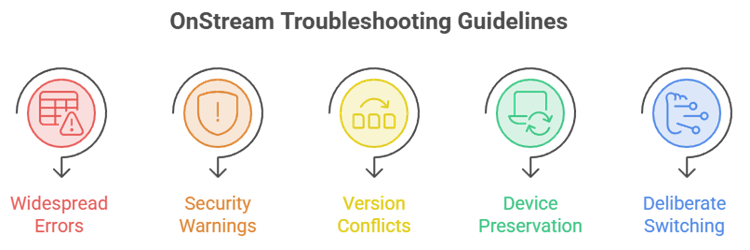
Stop after you have proved that other apps work, reproduced the failure on another device or network, and completed one cache-level reset. Continuing beyond that point creates more risk than value. Repeated reinstalls, cloned APKs, and security bypasses do not repair a failed remote service.
- Stop for Widespread Errors: The same “Couldn’t Load” message across phone, television, and hotspot tests is enough evidence to pause local troubleshooting.
- Stop at Warnings: Do not bypass an Amazon protection message, antivirus finding, certificate mismatch, or permission request that does not fit video playback.
- Stop Chasing Versions: Conflicting release numbers across look-alike domains mean provenance is uncertain, even when each page calls its own file official.
- Preserve Your Device: Factory resetting a Firestick is disproportionate when every other app works, because the reset cannot restore OnStream’s missing backend services.
- Switch Deliberately: Choose a replacement by content type, region, and payment model instead of installing the first APK that copies OnStream’s name or design.
Verdict:
OnStream’s current cross-device failures are unlikely to be cured by repeatedly clearing one Firestick. Run the scope test and reversible fixes once, then move to a service with a verifiable owner and support path. These three options cover the widest range of needs without pretending to offer the same questionable all-in-one catalog.
- Stremio: Best for synchronized discovery and a flexible media-center interface across Android TV, computers, mobile devices, web browsers, and supported smart televisions.
- Kodi: Best for personal libraries, network shares, tuners, and lawful add-ons when you want maximum control and accept a more involved setup.
- FilmRise: Best for immediate legal movies and television on Fire TV without a subscription, payment card, unknown-source permission, or complicated add-on configuration.
FAQs
Why does OnStream keep saying “Couldn’t Load”?
The message usually means the app cannot reach a required catalog, domain, or backend service. When it appears on several devices and networks while YouTube works normally, a service-side outage is more likely than bad Firestick cache. Local resets cannot repair an unavailable remote endpoint.
Is OnStream permanently shut down in 2026?
No authoritative operator notice confirms a permanent shutdown or restoration date. Current evidence supports saying OnStream is widely reported as unavailable or unreliable, not declaring a proven permanent closure. Claims about enforcement or a comeback should remain unconfirmed until a named primary source publishes verifiable details.
Will clearing cache fix OnStream on Firestick?
Clearing cache can fix a frozen process, stale poster data, or a crash limited to one device. It will not restore OnStream if the same error appears on phones, TVs, and another network. Clear cache once, restart, and use the cross-device test before clearing data.
Should I install a newer OnStream APK from another website?
Only if you can independently verify the operator, package name, signing certificate, permissions, and download source. Multiple sites advertise conflicting “latest” versions, so a familiar logo is insufficient. Do not bypass a Fire TV protection warning, and delete installers from unknown mirrors instead of testing them.
What is the closest free replacement for OnStream?
No legal service duplicates OnStream’s old promise of current premium content for free. FilmRise and Fawesome are simple ad-supported choices, while Sling Freestream adds live channels. For more options, compare the site’s best free OnStream alternatives and choose based on region and catalog.
Can a VPN make OnStream work again?
A VPN can change your route or region, so testing a different server may identify a routing conflict. It cannot repair offline servers or removed content sources. If OnStream fails with the VPN connected, disconnected, and on a mobile hotspot, stop switching locations and use an alternative.