Key Takeaway: A Firestick no signal message means the television cannot detect usable video on the selected input. Confirm the TV menu, select the exact HDMI port, provide stable power, and simplify the connection before changing Fire OS. The first successful test usually identifies the failed link.
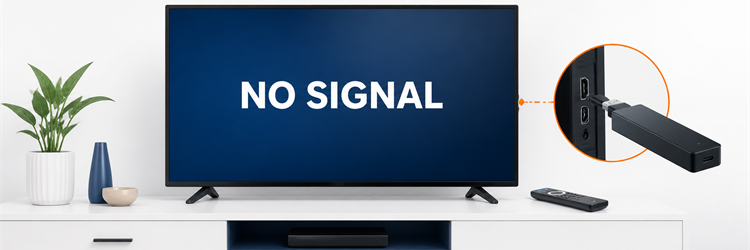
“No signal” is more specific than a black screen. The television, receiver, or HDMI switch usually generates it because usable video never reached that input. The cause may be the Firestick, wrong input, weak power, loose connector, incompatible display mode, or intermediary device.
I approach this fault as a chain: television, input, HDMI path, power, and Firestick. Change one part at a time and note any message change. A factory reset comes last because it cannot repair a damaged port, weak cable, receiver, or failed handshake.
What the No Signal Message Actually Tells You
The wording identifies which device noticed the failure. If “No Signal” uses the television’s own banner, the TV is not receiving acceptable HDMI video. If the Fire TV logo or Home screen appears first, the connection worked temporarily; investigate resolution, HDCP, heat, or playback.
- TV Menu Visible: A working television menu proves the panel and basic TV electronics can draw an image, so focus on the selected HDMI source path.
- Input Banner Persists: A stable no-signal banner normally means the TV sees no valid source timing from the connected Firestick or intermediary equipment.
- Logo Appears Briefly: Seeing the Fire TV logo proves power and video existed during startup, narrowing the fault to later negotiation or software loading.
- Audio Continues: Sound without a picture points toward video mode or HDCP negotiation rather than a completely unpowered or disconnected streaming device.
- Message Changes: “Unsupported format,” flickering, or a temporary logo is useful evidence because each change confirms that part of the HDMI chain responded.
| What You See | Most Useful First Test | What to Avoid First |
|---|---|---|
| TV menu also missing | Test the television with another source | Changing Fire OS settings |
| TV menu works, no Fire TV logo | Verify exact HDMI input and stable power | Clearing app data |
| Logo appears, then no signal | Reset the HDMI handshake and video mode | Buying a remote |
| Home screen works through another TV | Inspect the first TV port and compatibility | Factory-resetting the Firestick |
| Fails through receiver only | Connect the Firestick directly to the TV | Replacing the television |
| Fails on two known-good displays | Confirm power, then contact support | Repeating cable swaps indefinitely |
Fix 1: Match the TV Input to the Physical HDMI Port
The Firestick may be connected to HDMI 2 while the television displays HDMI 1. Read the label beside the port instead of trusting an old custom name. Keep the TV remote available because the Fire TV remote may control power and volume without selecting the correct source.
- Read the Port: Trace the Firestick or extender physically and note whether it enters HDMI 1, HDMI 2, HDMI 3, ARC, or eARC.
- Use TV Remote: Press Input or Source on the television remote and select the matching label rather than relying on automatic source switching.
- Pause on Each: Wait about ten seconds after selecting an input because some televisions need time to detect a newly powered HDMI device.
- Ignore Names: A port renamed “Game” or “Cable” may still contain the Firestick, so match the physical number before the custom description.
- Watch the Banner: Note whether the message changes to “Checking device,” flashes, or disappears, because that response confirms the selected input is active.
Fix 2: Rebuild the Firestick Power Path
A Firestick can reach HDMI detection without enough stable current to finish startup. Amazon’s current Fire TV Stick setup guidance directs most models to compatible wall power, though model-specific instructions can differ. Use the hardware supplied for your exact device.
- Use Compatible Power: Connect the correct adapter directly to a firm wall outlet unless your specific model’s official instructions explicitly support television USB power.
- Remove Accessories: Bypass USB hubs, smart plugs, extension leads, and inline switches that can introduce voltage drop or intermittent contact during startup.
- Inspect the Cable: Replace a frayed, excessively long, sharply bent, or loose USB cable with a short compatible cable in good condition.
- Prove the Outlet: Test a lamp or charger from the same socket, then repeat the Firestick startup from a second known-working wall outlet.
- Change One Part: Swap only the outlet, adapter, or cable per attempt so a restored picture identifies which weak component caused the failure.
Fix 3: Seat the HDMI Connection Without Forcing It
A Firestick can sit at an angle behind a TV when nearby cables press against it. Power everything down before reseating the connector. The plug should enter straight and remain supported. For recessed or crowded ports, the supplied short HDMI extender can reduce strain without creating a complex chain.
- Power Down First: Unplug the Firestick’s power before touching HDMI so repeated hot connections do not confuse detection or stress the connector.
- Check Alignment: Remove and reinsert the plug straight, stopping if resistance suggests the connector is reversed, obstructed, or physically damaged.
- Use the Extender: Add the short Amazon-supplied HDMI extender when the television casing prevents a full connection or bends the Stick sharply downward.
- Clear Nearby Cables: Move thick HDMI or antenna leads that push against the Firestick and gradually loosen its connection behind the television.
- Inspect Both Ends: Look for bent metal, cracked plastic, dust, or a visibly loose port, but never insert tools into powered HDMI sockets.
Fix 4: Try Another HDMI Port With a Clean Label
One TV port may have failed, use different enhanced-format settings, or be reserved for ARC/eARC. Move the unpowered Firestick to another normal HDMI input and select it manually. A picture on the second port proves the Stick produces video and focuses attention on the original port or settings.
- Choose a Standard Port: Prefer a regular HDMI input first, leaving ARC or eARC available for audio equipment unless the TV manual says otherwise.
- Rename After Success: Do not rename the new input until video appears; its printed number remains the clearest reference during troubleshooting.
- Retest the Original: After proving the Stick elsewhere, return once to the first port to distinguish a temporary handshake from permanent port trouble.
- Compare Another Source: Connect a known-working console or player to the suspect port and see whether the television detects that device normally.
- Record the Result: “Stick works on HDMI 3 but nothing works on HDMI 1” is useful evidence for the television manufacturer or technician.
Fix 5: Reset the HDMI Handshake in Order
HDMI devices exchange capabilities at startup. A TV waking from standby, receiver starting late, or Firestick resuming with old display data can leave that exchange incomplete. A deliberate power sequence clears stale state better than rapid input changes. Let standby power drain before rebuilding the chain.
- Shut Down Components: Turn off the TV, receiver, soundbar, switch, and Firestick, then disconnect their power rather than leaving them in standby.
- Wait One Minute: Leave the equipment unpowered for about sixty seconds so cached HDMI state and temporary controller errors can clear.
- Connect Directly: For this attempt, plug the Firestick into the television without a receiver, switch, capture device, splitter, or long extension cable.
- Start the TV: Power the television first, select the exact HDMI input, and allow its input banner to settle before powering the Firestick.
- Power Firestick Last: Connect stable Firestick power and watch for the logo without pressing buttons or changing inputs during the initial negotiation.
Fix 6: Bypass Receivers, Soundbars, Switches, and Splitters
Every intermediary must accept the Firestick’s video and pass it onward. A receiver may use the wrong source, a soundbar may expect ARC elsewhere, and a switch may lack bandwidth or power. Direct connection is only a diagnostic test, not a permanent home-theater change.
- Go TV Direct: Connect the Firestick to a normal television HDMI port and use the TV speakers for one clean picture test.
- Check Receiver Source: If direct video works, reconnect the receiver and select the exact input assigned to the Firestick before changing other settings.
- Verify Output Path: Confirm the receiver or switch output cable reaches the television port currently selected, not another labeled input hidden behind equipment.
- Power Active Devices: Ensure switches, splitters, converters, and capture devices that require their own adapters are receiving stable compatible power.
- Add Back Gradually: Reconnect one intermediary at a time after direct video works; the step that restores “No Signal” identifies the incompatible link.
Fix 7: Return to a Display Mode the TV Supports
A Firestick may boot but lose video when switching to a saved resolution, refresh rate, HDR mode, or protected stream the display cannot accept. Video Resolution sits under Settings → Display & Sounds → Display. Use a compatible second TV to lower output when Home is inaccessible.
- Use Another Display: Connect the Firestick to a known-compatible television or monitor and wait until the Home screen becomes stable before editing video settings.
- Select Auto First: Choose automatic video resolution so the Firestick negotiates a common mode rather than forcing an old 4K or refresh-rate choice.
- Lower Resolution: If Auto still fails on the original television, select 1080p or 720p temporarily and retest the complete HDMI chain.
- Disable Match Rate: Turn off frame-rate matching temporarily when no signal begins only as playback starts or when video changes between titles.
- Reduce HDR Complexity: Use a conservative dynamic-range setting during diagnosis, then restore preferred HDR options individually after stable video returns.
Fix 8: Separate HDCP Failure From Total Signal Loss
HDCP protects commercial video across HDMI. Amazon’s Prime Video Fire TV guidance notes HDCP 1.4 for HD and 2.2 for UHD or HDR. If menus work but protected video fails, the Firestick produces a signal; compatibility is failing later.
- Compare Menus: Confirm the Fire TV Home screen remains visible while only a movie, app, or UHD title loses video or reports an error.
- Try HD Content: Play a standard HD title to see whether the failure is limited to UHD, HDR, or a higher HDCP requirement.
- Remove Converters: Bypass capture cards, analog converters, splitters, and older receivers that may not pass protected video at the requested standard.
- Change the Cable: When using a Fire TV Cube, extender, receiver, or soundbar, test a short certified HDMI cable suitable for the target resolution.
- Update Equipment: Install available TV, receiver, and Fire TV firmware updates because manufacturers sometimes correct HDMI and HDCP negotiation problems after release.
Fix 9: Cool the Firestick and Check for Intermittent Contact
Heat and strain often create intermittent faults. A picture that disappears after twenty minutes, returns after cooling, or changes when the Stick moves deserves a hardware test. Do not cover the device, trap it by a hot vent, or twist a warm HDMI connector.
- Let It Cool: Disconnect power and allow the Firestick to cool in open air before one controlled restart from a stable wall adapter.
- Improve Clearance: Use the short HDMI extender to move the Stick away from a hot panel, crowded recess, or bundle of warm cables.
- Remove Dust: With all equipment unpowered, gently clear loose surface dust around ventilation openings without liquids, metal tools, or compressed air at close range.
- Avoid Movement: Once reseated, support the Stick and cables so vibration or cable weight cannot pull the HDMI plug sideways during operation.
- Time the Failure: Record how long video lasts and whether heat, sleep, playback, or physical movement consistently triggers the no-signal message.
Fix 10: Prove the Firestick on a Second Display
A second known-working TV is the cleanest final hardware test. Keep verified power and connect directly to a normal HDMI port. If video appears, return to the first TV’s port, mode, receiver, or firmware. Identical failure makes support or replacement reasonable.
- Keep Power Constant: Use the already verified adapter and cable so the second-display test changes only the television and HDMI input.
- Connect Directly: Avoid receivers, splitters, soundbars, capture devices, and long cables that would carry the same uncertainty into the comparison.
- Select Input Manually: Read the second television’s port label and choose that exact source with its own remote before judging the result.
- Wait Through Startup: Allow several minutes for an update or recovery boot, watching for a logo, changing message, audio, or stable Home screen.
- Preserve the Evidence: Photograph the connection and note both display results before contacting Amazon or the television manufacturer for targeted help.
Use the Result to Choose the Next Action
The next step depends on which isolated test changed the screen. If the TV displays menus but every HDMI source fails, seek TV support. If only the Firestick fails on two displays with verified power, contact Amazon. When video appears and later goes dark, use the related Firestick black screen troubleshooting guide.
- Second Port Works: Keep using the working input and investigate the original port’s format setting, physical condition, or television warranty separately.
- Direct Connection Works: Reconfigure or update the receiver, soundbar, switch, splitter, or converter that failed when added back into the chain.
- Lower Mode Works: Leave the compatible resolution selected, update both devices, then raise video features one at a time while checking stability.
- Second TV Fails: Reconfirm compatible power once, document the behavior, and use Amazon support rather than buying random adapters or dismantling hardware.
- Failure Is Intermittent: Record time, temperature, movement, and playback trigger because repeatable conditions help distinguish heat, contact, HDCP, and software transitions.
| Test Result | Likely Boundary | Practical Next Step |
|---|---|---|
| Video returns on another HDMI port | Original TV port or its configuration | Use the working port and check TV settings |
| Video returns with direct TV connection | Receiver, soundbar, switch, or cable | Add components back one at a time |
| Video returns at 1080p | Resolution, HDR, bandwidth, or HDCP path | Keep the compatible mode and update equipment |
| Menus work but protected video fails | HDCP or app-specific playback path | Test HD content and simplify HDMI |
| Firestick works on a second TV | First TV or its connected equipment | Focus support on the first display chain |
| Firestick fails on two displays | Power hardware or Firestick | Recheck power, document, and contact Amazon |
Final Verdict
A Firestick no signal warning is solved fastest by treating HDMI as a chain. Match the port to the selected input, verify model-appropriate power, connect directly, rebuild the handshake, and compare a second display. Consider resets or replacement only after controlled tests rule out the television and connection path.
- Start Physical: Input, power, connector seating, and a direct port test reveal more than changing applications when no Fire TV image appears.
- Use Changes as Evidence: A logo, new warning, working second port, or successful lower resolution each narrows the failure to a specific boundary.
- Escalate Selectively: Contact the television maker when other sources also fail; contact Amazon when the Firestick fails across known-good displays and power.
FAQs
Why does my Firestick say no signal?
The television is not receiving video it can use on the selected HDMI input. Common causes include the wrong input, unstable Firestick power, a loose connection, a failed port, an incomplete HDMI handshake, an incompatible resolution, or an intermediary receiver or switch. The message alone does not prove the Firestick has failed.
How do I reset HDMI when the Firestick has no signal?
Turn off and unplug the television, Firestick, and any receiver or switch for about one minute. Connect the Firestick directly to the TV, power the television first, select the exact HDMI input, and power the Firestick last. This ordered restart clears stale HDMI negotiation without erasing apps or account data.
Can weak power cause a Firestick no signal warning?
Yes. Marginal power may prevent startup or make video disappear as the device loads. Use the compatible power hardware for your exact model, inspect the cable, and test a known-working wall outlet. Change one component at a time so a successful boot identifies the weak link rather than hiding it.
Why does the Firestick work on one TV but show no signal on another?
The working display proves the Firestick can generate video. The other television may use a damaged port, incompatible saved resolution, different HDR or HDCP capability, or an intermediary device that blocks negotiation. Set the Firestick to Auto or a conservative resolution on the working TV, then retest the original setup directly.
Should I factory reset a Firestick with no signal?
Not first. A reset cannot fix the wrong television input, insufficient power, damaged HDMI hardware, or an incompatible receiver. It also removes local settings and apps. If the device shows no picture on two known-good displays with verified power, contact Amazon support before attempting a blind factory reset.
What if the Firestick has no light and no signal?
Fire TV Stick models do not all provide a useful visible status light, so judge power by the logo, heat, and response on a known-good display. Verify the adapter, cable, outlet, and input first. If the device remains completely unresponsive, use the separate Firestick won’t turn on troubleshooting steps before arranging support.