
Key Takeaway: OTT Navigator is a free IPTV player with no channels of its own. On a Fire OS Stick, install the official standalone build with Downloader code 982469 or the APK from the official downloads page, then add your provider under Settings > Provider > Add provider. The free app plays live TV, the guide, catch-up, and the media library. Premium, which covers 5 devices in the standard package, is bought in OttNav Companion on a phone for Fire TV.
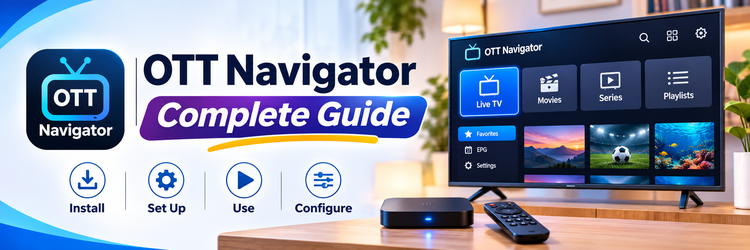
OTT Navigator is one of the most capable IPTV players on Android TV and Fire TV, but setup still trips people up: which build to install, where to buy Premium without Google Play, and which provider template matches the login a service sent. This complete guide walks through install, playlist setup, the TV guide, and Premium using the official FAQ.
The app is only a player. It does not sell channels. You still need a legal IPTV or OTT provider, then you add that provider in the app. If you are new to how playlists work, start with our what is IPTV explainer.
Important Note: Install OTT Navigator only from official sources listed in the developer FAQ. The standalone APK and Downloader code 982469 are published there for Fire TV and other devices without Google Play. Use only playlists and portals you have the right to watch, and follow local law. Vega OS Fire TV Sticks cannot sideload Android APKs; confirm the device runs Fire OS first.
What OTT Navigator Is
According to the official FAQ, OTT Navigator plays live TV, TV archive (catch-up), and video on demand from an IPTV or OTT provider you add. It runs on Android TV and Google TV, set-top boxes and sticks including Fire TV, plus phones, tablets, and Chromebooks. There is no official app for LG webOS or Samsung Tizen, and no desktop version for Windows, Mac, or Linux.
With a provider connected, the app can show live channels with an EPG, favorites, categories, and search; the provider’s catch-up archive when it offers one; and a media library for movies and series. Recording of channels and shows is a Premium feature.
| Item | Official FAQ fact |
|---|---|
| What it is | An IPTV player with no channels of its own. You add a provider. |
| Devices | Android TV, Google TV, Fire TV, Android boxes, phones, tablets, and Chromebooks |
| Not supported | LG webOS and Samsung Tizen; no official Windows, Mac, or Linux app |
| Fire TV install | Standalone build, official Downloader code 982469, Fire OS only (not Vega OS) |
| Minimum Android | Standalone: 5.0+; Google Play TV: 8.0+; phones and tablets: 9.0+ |
| Provider types | Playlist (M3U or M3U8), Xtream Codes, MAC Portal, or Stalker Portal |
Which OTT Navigator Build to Install
The official downloads page lists several builds. Pick the one that matches the device, because they install as separate apps and update in different ways.
- Standalone: Android 5.0 and newer. Best for Fire TV and boxes without Google Play. Updates itself, including stable, beta, and alpha channels. Premium is bought in OttNav Companion.
- Google Play, TV: Android 8.0 and newer. Updates through Google Play. Premium is bought in the app through Google Play.
- Google Play, phones and tablets: Android 9.0 and newer, with the same ottnav account and Play billing.
- Aptoide: Android 8.0 and newer. Premium can be bought in the app or in Companion.
- Huawei AppGallery: Android 9.0 and newer. Premium is bought in AppGallery and is not part of an ottnav account.
The official Google Play TV listing is appnovatica.tv, and the phone and tablet listing is appnovatica.stbp. If a similarly named app is not linked from the official FAQ, skip it.
How to Install OTT Navigator on Firestick
Fire TV does not include Google Play, so the official path is the standalone build. The steps below follow the developer’s install guide. For the Downloader app itself, see our Downloader app for Firestick guide. A wider playlist overview is in how to set up IPTV on Firestick.
1. Confirm the Stick runs Fire OS
Open Settings, then My Fire TV, then About. The software line should say Fire OS. Newer Vega OS Sticks cannot sideload Android APKs, and the official standalone build will not install on those models.
2. Allow unknown sources for Downloader
Install Downloader from the Amazon Appstore if it is not already on the Stick. Then open Settings, go to My Fire TV (or Applications), choose Install unknown apps, and turn the permission on for Downloader only.
3. Enter official Downloader code 982469
- Open Downloader and enter code 982469, which the official downloads page publishes for the standalone build.
- Wait for the APK to finish, then open the file and confirm Install.
- If you prefer a direct file, download the official APK from app.ott-nav.com/dist/std/latest.apk and open it on the Stick. Avoid third-party APK sites.
- Find OTT Navigator in the list of all apps, then turn unknown sources off for Downloader when setup is finished.
The standalone build updates itself. In Settings > About app > Update channel you can stay on stable or switch to beta or alpha, as the official FAQ describes.
How to Add a Provider in OTT Navigator
Open Settings > Provider > Add provider, then pick the template that matches what the provider sent, as listed in the provider template FAQ:
- Playlist: use this for an M3U or M3U8 link, or any URL that returns a channel list. Prefer a hosted link over a local file. Building a legal playlist is covered in how to create an M3U playlist.
- Xtream Codes: use this for a server address plus username and password, or a get.php link that already contains those details.
- MAC Portal: use this for a portal URL and a MAC address, often starting with 00:1A:79.
- Stalker Portal: the same as MAC Portal, plus login and password when the provider requires them.
| Template | What you need | Notes from the official FAQ |
|---|---|---|
| Playlist | An M3U or M3U8 link, or any URL that returns a channel list | Prefer a hosted link over a local file |
| Xtream Codes | Server address with port, plus username and password, or a get.php link | The app can extract the login from a full get.php link. Leave API version on v2; try v1 only if v2 loads no channels |
| MAC Portal | Portal URL and a MAC address, often starting with 00:1A:79 | The app can fill a MAC; replace it only if the provider registered a different one |
| Stalker Portal | Portal URL, plus login and password when the provider requires them | Leave login fields empty when the portal uses only a MAC |
| TV guide (EPG) | Often arrives with an Xtream Codes or portal login | The free app uses the provider guide; several EPG sources are a Premium feature |
Add an Xtream Codes login
The Xtream Codes and portal FAQ gives this sequence:
- Choose Xtream Codes under Generic middleware server.
- In URL address, enter the server address with the port and nothing after it. Pasting a full get.php link also works: the app pulls out the username and password and keeps the server address.
- Enter the Login and Password exactly as given, including capital letters.
- Leave API version on v2. Try v1 only if v2 loads no channels.
- Choose Connect and wait for the report that shows how many channels arrived.
Add a MAC or Stalker portal
- Choose MAC Portal or Stalker Portal.
- Enter the portal URL exactly, for example a path that ends in /stalker_portal/c/ or /c/.
- The app fills a MAC address for the device. Replace it only if the provider registered a different one, or send the provider the MAC the app shows.
- For Stalker Portal, add the login and password if they were provided; leave them empty when the portal uses only a MAC.
- Choose Connect. If the portal also asks for device_id or similar box details, fill only the fields the provider named in Provider properties.
How to Set Up the TV Guide (EPG)
Many Xtream Codes and portal providers send guide data with the login, so the EPG appears after a successful Connect. If some channels show no guide, the official FAQ says to check the XMLTV source, the tvg-id or name match, and the device time zone first, then apply a time shift per channel or provider if programmes sit an hour off.
The free app can use the provider’s guide. Several EPG sources per provider, and several of your own XMLTV sources, are Premium features. After a provider updates its list, reload the playlist and guide from the provider settings, or set an automatic reload interval.
OTT Navigator Premium: What It Unlocks and How to Buy It
The Premium FAQ states that the free app can watch live channels, the TV guide, archive, and the media library. Premium unlocks the extras, including:
- Recording of channels and shows, plus the Recordings section.
- Play on TV, picture-in-picture, and Studio mode.
- Auto-switch frame rate to match the video on TVs and boxes.
- Several EPG sources and extra media library sources.
- Channel clean-up tools, such as folding duplicates and dropping SD copies of HD channels.
- Adding a provider via QR code from a phone, and providers saved in the ottnav account.
- Several providers active at the same time.
The device FAQ says the standard Premium package covers 5 devices, and more slots can be added. Each activated device uses one slot. Removing a device frees that slot. The official FAQ does not publish a fixed public price; the amount is shown in the store at purchase.
| Feature | Free app | Premium |
|---|---|---|
| Live channels, TV guide, catch-up, and media library | Yes | Yes |
| Recording and the Recordings section | No | Yes |
| Play on TV, picture-in-picture, and Studio mode | No | Yes |
| Auto-switch frame rate to match the video | No | Yes |
| Several EPG sources and extra media library sources | No | Yes |
| Channel clean-up, such as folding duplicates | No | Yes |
| Several providers active at the same time | No | Yes |
| Device coverage | Install the free app on each device | Standard package covers 5 devices; more slots can be added |
Buy Premium on Fire TV
Fire TV has no Google Play, so follow the official Fire TV Premium steps:
- On an Android phone, install OttNav Companion from the official listing and create or sign in to an ottnav account.
- Buy device slots in Companion so the account has free slots.
- On the Stick, open OTT Navigator, go to Settings > Premium, and sign in with the same account.
- If the Stick is missing from the device list, choose Activate (Currently used device). The device appears as a 4-word installation number.
- Repeat the sign-in and activate steps on each extra device you want to cover.
Premium bought through an ottnav account follows the account, not a single APK build. If you later switch from the standalone app to a store build, sign in again under Settings > Premium. Huawei AppGallery Premium is an exception: it stays in that store and is not part of the ottnav account.
Devices That Support OTT Navigator
- Works: Android TV and Google TV sets, Android boxes and sticks including Fire TV, Nvidia Shield, and Chromecast with Google TV, plus Android phones, tablets, and Chromebooks.
- Fire OS only for sideload: the standalone APK and Downloader path apply to Fire OS devices, not Vega OS Sticks.
- Not supported: LG webOS and Samsung Tizen TVs need a box or stick. There is no official Windows, Mac, or Linux app; the FAQ only mentions Android emulators as a workaround.
Fix Common OTT Navigator Problems
- Provider failed to load: check the URL, username, and password, including the port, then try API version v1 only after v2 fails. The official connection FAQ covers empty playlists and unreachable servers.
- 403 or IP blocked: some providers limit connections. Lower the connection limit, avoid rapid channel hopping, and turn off previews if the server starts refusing requests.
- Buffering or a black screen: try another codec in the player menu (hardware, system, or software VLC), then a larger buffer. If every app struggles, the issue is often the stream or the network.
- Guide is empty or in the wrong time: confirm the device time zone, then adjust the EPG shift and channel mapping.
- Premium purchase error DF-PDP-3: Google Play shows this when the app was not installed from the store. Buy through the Play build, or use OttNav Companion for the standalone Fire TV build.
For a full Firestick playlist walkthrough, see how to set up IPTV on Firestick.
Final Verdict
OTT Navigator is a strong choice when a household wants a free player with deep provider options and a clear official path for Fire TV. Install the standalone build from official sources, add one legal provider first, and only then decide whether recording, multi-provider use, or extra EPG sources justify Premium on up to 5 devices.
Official builds and Downloader code 982469 are listed on the official OTT Navigator downloads page, and the standalone APK is at app.ott-nav.com/dist/std/latest.apk. For a primer on how IPTV works, see what is IPTV.
FAQs
What is OTT Navigator?
OTT Navigator is an IPTV player for Android TV, Google TV, Fire TV, Android boxes, phones, tablets, and Chromebooks. It has no channels of its own. You add a provider with an M3U playlist, an Xtream Codes login, or a MAC or Stalker portal.
How do you install OTT Navigator on Firestick?
On a Fire OS Stick, install the official standalone build. The developer lists Downloader code 982469 and a direct APK on the official downloads page. Vega OS Fire TV Sticks cannot sideload Android APKs.
Is OTT Navigator free?
Yes. The free app plays live channels, the TV guide, catch-up archive, and the media library. Premium unlocks extras such as recording, picture-in-picture, Studio mode, and more EPG sources.
How much is OTT Navigator Premium?
The official FAQ does not list a public dollar price. The standard Premium package covers 5 devices. On Fire TV, buy device slots in OttNav Companion on a phone, then sign in on the Stick under Settings > Premium.
Does OTT Navigator work without Google Play?
Yes. The standalone build is made for Fire TV and other devices without Google Play. It updates itself. Premium is bought in OttNav Companion, then activated in the app with the same ottnav account.
How do you add a playlist to OTT Navigator?
Open Settings > Provider > Add provider. Choose Playlist for an M3U or M3U8 link, Xtream Codes for a server address plus username and password, MAC Portal for a portal URL and MAC address, or Stalker Portal when a login is also required.
Can several providers run at the same time?
Yes, but the official FAQ says several providers active at the same time need Premium. You can still add more than one provider and switch them, subject to that limit.
Is OTT Navigator legal?
The app itself is a player and is legal to install from official sources. Legality depends on the playlist or provider you add. Use only services you have the right to watch, and follow local law.