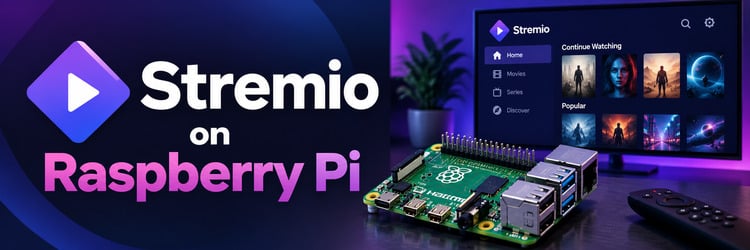
Key Takeaway: Yes, Stremio works on a Raspberry Pi, and the easiest way is the official Stremio OS image for the Raspberry Pi 5 and Pi 4. It is a free Android TV 14 system based on LineageOS that you flash to a microSD card of at least 8GB, and it boots straight into the Stremio Android TV app. The Pi 5 can handle 4K playback, while Stremio says the Pi 4 cannot play 4K. Older boards such as the Pi 3 are not supported. Stremio still calls the project experimental, so expect a few rough edges.
A Raspberry Pi is a tempting Stremio box. It is small, quiet, cheap to run, and you may already have one in a drawer. Stremio now makes this much easier with its own Raspberry Pi system image, and its Linux app is also listed for ARM64 on Flathub.
In this guide I explain which Raspberry Pi models work, what you need, and how to install Stremio OS step by step. I also cover running Stremio on regular Raspberry Pi OS, using Stremio Web in the Pi browser, how Stremio compares with Kodi on LibreELEC, and how to fix the problems people hit most often.
| Option | Works on | Best for | Main limit |
|---|---|---|---|
| Stremio OS (official image) | Raspberry Pi 5 and Pi 4 | A dedicated TV box that boots into Stremio | Experimental, no Google services |
| Stremio Flatpak on Raspberry Pi OS | 64-bit Raspberry Pi OS on Pi 5 or Pi 4 | Keeping a normal Linux desktop | Pi performance not officially tested |
| Stremio Web in Chromium | Any Pi that runs a modern browser | Browsing and quick tests | Many streams need a streaming server |
| Unofficial ARM builds | Varies | Tinkerers only | Community builds, not supported by Stremio |
| Kodi on LibreELEC (alternative) | Recent Pi models | A Kodi-based media center | Different app, not Stremio |
Does Stremio Work on Raspberry Pi?
Yes. In July 2024 Stremio announced Stremio OS for the Raspberry Pi 5 and Raspberry Pi 4. It is a full operating system rather than an app you install on top of Raspberry Pi OS. You write the image to a microSD card, put the card in the Pi, and the device starts up as an Android TV box with Stremio already installed.
According to Stremio, the image uses a custom build of LineageOS 21, which is based on Android TV 14 and made by the developer KonstaKang. Stremio added only a few things on top:
- The Stremio app for Android TV
- A small app called Stremio Launch on Boot, which can open Stremio automatically when the Pi starts
- The Aptoide TV store, which handles app updates
- A Stremio boot animation
The image does not include Google apps or Google services, so there is no Play Store. That keeps it light, but it also means some Android apps that rely on Google services may not install or run.
The other routes are less polished. Stremio desktop builds for Linux are published on Flathub for both x86_64 and ARM64 (aarch64) computers, so they can be installed on 64-bit Raspberry Pi OS, but Stremio does not present this as a Raspberry Pi product. Stremio Web runs in any modern browser, including the one on the Pi, with some limits I explain below.
Which Raspberry Pi Models Work With Stremio?
Stremio built and tested its image on a Raspberry Pi 5 with 8GB of RAM and a Raspberry Pi 4 Model B with 8GB of RAM. Those are the only two boards officially listed.
| Model | Stremio OS | Notes |
|---|---|---|
| Raspberry Pi 5 | Yes, official | Stremio says it is fully capable of smooth 4K playback |
| Raspberry Pi 4 Model B | Yes, official | Plays HD content, but Stremio says it cannot play 4K due to hardware limits |
| Raspberry Pi 400 and Pi 500 | Not listed | Share chips with the Pi 4 and Pi 5, but Stremio has not listed or tested them |
| Raspberry Pi 3 and older | No | Not supported by Stremio OS |
| Raspberry Pi Zero models | No | Too limited for Stremio OS |
If you are buying a board for Stremio, choose the Raspberry Pi 5. More RAM helps with the Android TV interface, and the Pi 5 has a hardware HEVC (H.265) decoder that can handle 4K video. The Pi 4 decodes HEVC in hardware too, but Stremio still rules out 4K on its image. Neither board has hardware AV1 decoding, so AV1 streams may stutter or fail. For a wider look at hardware, see our list of the best devices for Stremio, where the Pi 5 with Stremio OS sits next to ready-made streaming boxes.
What You Need Before You Start
- A Raspberry Pi 5 or Pi 4: The 4GB or 8GB versions are the safest choice, since Stremio tested on 8GB boards.
- A microSD card of at least 8GB: The Stremio OS image is about 7GB. A fast card of 32GB or more gives you room for the app cache and updates.
- The official power supply: The Pi 5 uses a 27W USB-C supply and the Pi 4 uses a 15W USB-C supply. Weak chargers cause random reboots and stutter.
- A micro HDMI to HDMI cable: Both boards use micro HDMI ports. Use the port next to the power connector.
- Cooling: A case with a fan or the Pi 5 Active Cooler keeps playback smooth during long sessions.
- An input device: A USB keyboard, an air mouse, or a Bluetooth remote. TV remote control over HDMI-CEC may work, but user reports are mixed.
- A computer to flash the card: Windows, Mac, or Linux with Raspberry Pi Imager or balenaEtcher installed.
Method 1: Install Stremio OS on Raspberry Pi (Recommended)
This is the official method and the one I recommend for most people. It turns the Pi into a dedicated Stremio player that works with a TV much like a streaming stick.
Step 1: Download the Right Image
Go to the official Stremio downloads page and open the section for other devices. Download the Stremio OS image for your exact board, either Raspberry Pi 5 or Raspberry Pi 4. The two images are different, so the Pi 4 file will not boot on a Pi 5 and the reverse is also true. The same files are listed on the Stremio OS for RPI project page on GitHub. Avoid copies on other sites.
Step 2: Flash the Image to the microSD Card
You can use either of the two most common flashing tools. Stremio gives specific advice for each.
- Insert the microSD card into your computer. Flashing erases everything on it, so back up anything you need first.
- In balenaEtcher, choose Flash from file and select the Stremio OS image. In Raspberry Pi Imager, open the operating system list and choose Use custom, then select the image.
- Pick the microSD card as the target. Double-check the drive so you do not erase the wrong disk.
- Start the write, wait for it to finish and verify, then eject the card.
Do not apply OS customisation settings in Raspberry Pi Imager, such as a username or Wi-Fi details. Those options are made for Raspberry Pi OS, not for an Android-based image.
Step 3: Expand the Storage (Optional)
Because the image is about 7GB, a larger card ends up with unused space after flashing. Stremio suggests using a partition editor such as GParted on a Linux computer to extend the data partition, which it identifies as /dev/block/mmcblk0p4 inside Android. If you are not comfortable editing partitions, you can skip this step, as Stremio does not need much space to run.
Step 4: First Boot and Android TV Setup
- Insert the card into the Pi, connect the HDMI cable, keyboard or remote, and network cable if you use one, then connect power.
- Wait for the first boot. It is slower than later boots while the system prepares itself.
- Follow the one-time Android TV setup screens for language, network, and basic settings.
- If the setup gets stuck on searching for accessories during Bluetooth discovery, press Back on the remote or F2 on a keyboard to skip the step.
- Open Stremio from the home screen and sign in, or create a free account.
Step 5: Make Stremio Start Automatically
If you want the Pi to behave like a single-purpose Stremio box, open the Stremio Launch on Boot app and turn it on. Stremio will then open each time the Pi starts. You can still return to the Android TV home screen from the app, and you can turn the feature off later. You can also set Stremio as a featured app from the Apps panel so it sits at the front of the home screen.
After that, add the add-ons you want from the Stremio add-on catalog. If you already use Stremio on another device, signing in brings your library and installed add-ons across. The full Stremio OS announcement shows screenshots of the setup screens.
Method 2: Run Stremio on Raspberry Pi OS With Flatpak
If you want to keep a normal Raspberry Pi OS desktop for other tasks, you can try the Stremio desktop app through Flatpak. The Stremio listing on Flathub includes an ARM64 (aarch64) build, which matches 64-bit Raspberry Pi OS on a Pi 5 or Pi 4. Stremio moved its version 5 desktop app to the stable Flatpak channel in June 2026.
Treat this as a desktop option rather than the main way to watch on a TV. Stremio has not published Raspberry Pi performance testing for the Flatpak, and results depend on your board, cooling, and the formats you play.
- Make sure you run the 64-bit version of Raspberry Pi OS. The ARM64 Flatpak will not install on the 32-bit version.
- Open a terminal and update the system with
sudo apt updateandsudo apt full-upgrade. - Install Flatpak with
sudo apt install flatpak. - Add the Flathub repository with
flatpak remote-add --if-not-exists flathub https://dl.flathub.org/repo/flathub.flatpakrepo. - Reboot the Pi.
- Install Stremio with
flatpak install flathub com.stremio.Stremio. - Start it from the applications menu or with
flatpak run com.stremio.Stremio.
You may also find unofficial ARM64 .deb packages and community repositories for Stremio. The official downloads page offers a Linux .deb only for 64-bit x86 computers, so these ARM packages are not made by Stremio. Use them only if you understand the risk, and prefer the official Flatpak or Stremio OS.
Method 3: Use Stremio Web in the Pi Browser
Stremio Web runs in a browser, so you can open it in Chromium on Raspberry Pi OS without installing anything.
The catch is playback. Stremio Web relies on a streaming server for torrent-based streams and for converting some video formats, and the browser cannot provide that by itself. Streams from add-ons that deliver direct web links may play, while others will not. The desktop app and Stremio OS include the streaming server, which is why they are the better choice for regular viewing. Our guide on how to use the Stremio web app explains these limits in more detail.
Stremio OS vs Raspberry Pi OS vs LibreELEC
Many Pi owners compare Stremio with Kodi, because LibreELEC is one of the most popular media center systems for the Raspberry Pi. They are different apps, so the right choice depends on how you like to watch.
| Feature | Stremio OS | Raspberry Pi OS + Flatpak | LibreELEC (Kodi) |
|---|---|---|---|
| Main app | Stremio for Android TV | Stremio desktop app | Kodi |
| Interface | TV interface with remote support | Desktop with mouse and keyboard | TV interface with remote support |
| Official Pi support | Yes, Pi 5 and Pi 4 | App listed for ARM64, Pi not tested | Yes, for recent Pi models |
| Other uses | Android apps through Aptoide TV | Full Linux desktop | Kodi add-ons only |
| Setup effort | Low | Medium | Low |
| Status | Experimental | Desktop app, unofficial on Pi | Mature project |
If you prefer Kodi, read our guide to Kodi on Raspberry Pi, which covers LibreELEC, OSMC, and common boot and playback fixes.
Tips for Smooth Stremio Playback on a Pi
- Use wired Ethernet: Both boards have a Gigabit Ethernet port. A cable is more stable than Wi-Fi for high-bitrate streams.
- Pick the right quality: On a Pi 4, choose 1080p streams. On a Pi 5, 4K HEVC is possible, but very high-bitrate files can still struggle.
- Avoid AV1 streams: Without hardware AV1 decoding, the CPU has to do the work, which often leads to dropped frames.
- Keep it cool: A Pi that gets too hot slows itself down. Use a fan or a heatsink case.
- Keep apps updated: Let Aptoide TV update Stremio, and check for updates if something stops working.
Fix Common Stremio on Raspberry Pi Problems
| Problem | Likely cause | What to try |
|---|---|---|
| Black screen on first boot | Wrong image for the board, bad flash, or wrong HDMI port | Check that the image matches your Pi, flash again, and use the HDMI port next to the power connector |
| Stuck on searching for accessories | Bluetooth discovery step in Android TV setup | Press Back on the remote or F2 on a keyboard to skip it |
| Random reboots or a lightning bolt icon | Power supply too weak | Use the official 27W supply for Pi 5 or 15W supply for Pi 4 |
| 4K stutters on a Pi 4 | Hardware limit on Stremio OS for Pi 4 | Choose 1080p streams, or upgrade to a Pi 5 |
| TV remote does not control Stremio | HDMI-CEC not working with this build or cable | Try another HDMI cable and port, or use a keyboard, air mouse, or Bluetooth remote |
| Storage full warnings | Data partition left at the small image size | Expand the data partition with GParted, or clear the Stremio cache |
| Flatpak will not install | 32-bit Raspberry Pi OS | Reinstall the 64-bit version of Raspberry Pi OS |
| Streams do not play in the browser | No streaming server in Stremio Web | Use Stremio OS or the desktop app instead |
Is a Raspberry Pi a Good Stremio Device?
A Raspberry Pi is a good Stremio device if you enjoy tinkering or already own a Pi 5. It is a poor value choice if you plan to buy everything new just for Stremio.
- Pros: Official Stremio OS image, free software, low power use, silent with passive cooling, and easy to repurpose for other projects by swapping cards.
- Cons: Experimental status, no Google Play, mixed remote control support, no AV1 decoding, and the board, case, power supply, card, and remote together can cost as much as a ready-made streaming box.
If you just want Stremio on a TV with the least effort, an Android TV box or Fire TV device is simpler. Our Stremio APK guide shows how to get the official Android build on those devices safely.
Stay Safe and Legal With Stremio on Raspberry Pi
Installing Stremio OS or the Stremio app on your own Raspberry Pi is legal in most countries, because Stremio does not host content. What you watch depends on the add-ons you choose. Use add-ons and services you are entitled to use, download images only from Stremio, and avoid unofficial builds from unknown sources. A VPN can protect your privacy on public networks, but it does not make any content legal. For more detail, read our guide on whether Stremio is legal and safe.
Final Verdict
Stremio on Raspberry Pi works, and the official Stremio OS image makes it far easier than it used to be. Flash the right image for a Pi 5 or Pi 4, skip the Bluetooth step if setup stalls, turn on Launch on Boot, and you have a small, quiet Stremio box. Pick a Pi 5 if you want 4K. If you want a desktop instead, the Flatpak on 64-bit Raspberry Pi OS is worth a try, while Stremio Web is best kept for quick tasks.
Frequently Asked Questions
Does Stremio work on Raspberry Pi?
Yes. Stremio offers an official Stremio OS image for the Raspberry Pi 5 and Raspberry Pi 4. It is an Android TV 14 system based on LineageOS that boots with the Stremio app already installed.
Which Raspberry Pi is best for Stremio?
The Raspberry Pi 5 is the best choice. Stremio says it can handle smooth 4K playback, while the Raspberry Pi 4 cannot play 4K on Stremio OS. Stremio tested both boards with 8GB of RAM.
Can I install Stremio on a Raspberry Pi 3?
No. Stremio OS supports only the Raspberry Pi 5 and Pi 4. Older boards such as the Pi 3 and Pi 3 B+ are not supported.
How big does the microSD card need to be?
At least 8GB, because the Stremio OS image is about 7GB. A faster card of 32GB or more is better, and you can expand the data partition to use the extra space.
Does Stremio OS include Google Play?
No. The image does not include Google apps or services. It comes with Stremio, Stremio Launch on Boot, and the Aptoide TV store, which handles app updates.
Can I run Stremio on Raspberry Pi OS?
You can try it. Flathub lists an ARM64 build of the Stremio desktop app that installs on 64-bit Raspberry Pi OS through Flatpak, but Stremio has not published Raspberry Pi performance testing for it.
Why is setup stuck on searching for accessories?
This is the Bluetooth discovery step of Android TV setup. Press Back on the remote or F2 on a keyboard to skip it, as Stremio recommends.
Is Stremio or Kodi better on a Raspberry Pi?
It depends on your preference. Stremio OS is simple and add-on driven, but experimental. Kodi on LibreELEC is a mature, Pi-friendly media center with its own add-on system.